


[Open Inventor]
Context & Prerequisites
Open Inventor is protected by a license key mechanism that restricts usage to specified computers or network environments, as outlined in the applicable commercial agreements. This article explains how to configure licensing for the different supported licensing models.
Your Open Inventor license(s), along with any associated extensions, are issued for a specific hardware configuration and for use by a defined number of users. Depending on your purchase, you may have one of the following license types:
- Local license (node-locked license): Assigned to a single, identified computer.
- Floating license: Managed by a license server and shared by a specified number of users across multiple computers on the same network.
Each license type must be activated to generate a license file (also referred to as a password), which must then be installed on the computer.
Open Inventor uses FlexNet licensing technology developed by Flexera.
Note: In Open Inventor versions before 8.6, the Host ID was referred to as the Computer ID.
Process
1. Set Up a Local license
A local license allows Open Inventor to run on a single, specific computer. That computer is identified by its Host ID.
1.1 Get the Machine Host ID
To activate a local license, you must first retrieve the Host ID of the computer.
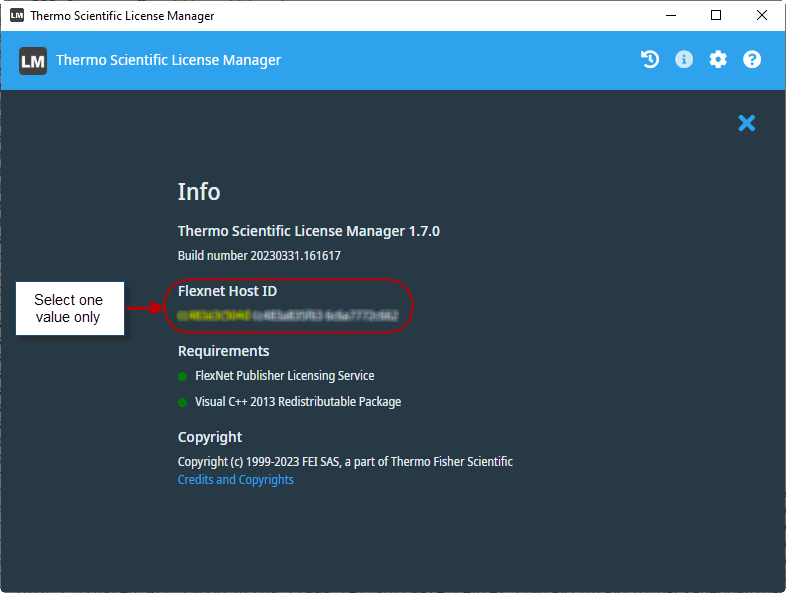
- Install and run the Thermo Scientific License Manager (LM).
- Click Information to display the FlexNet Host ID. If multiple Host IDs are shown, copy the one corresponding to your permanent LAN card.
1.2 Request the License Key
Once you have the Host ID, activate your license to obtain a certificate license file (password file) that will be installed on your machine.
If your license has not yet been activated, refer to article KA-01239 "Manage Local Licenses: Activate a License File".
1.3 Install the Certificate License File
To unlock Open Inventor, copy the provided license file to one of the following locations:
- <OIVHOME>/License/password.dat
- <OIVHOME>/arch*release/license/password.dat
Where OIVHOME is the installation path of the Open Inventor package.
2. Set Up a Floating License Environment
Follow this section only if you have purchased a floating license, in which a centralized license server distributes license keys to multiple users on the same network environment.
Note: Standalone, local, application passwords and temporary licenses are not managed using this mechanism.
2.1 Install the FlexNet License Server
Install and configure the FlexNet license server by following the instructions in article KA-01254 "Manage Floating License: Install a FlexNet License Server".
2.2 Configure Open Inventor Client Applications
After the FlexNet license server is installed and configured, each Open Inventor client system must be configured to communicate with it. This can be done either:
- Using the Thermo Scientific License Manager (LM), or
- Manually by editing the license configuration file.
2.3 Configure the License Server Connection Using the Thermo Scientific License Manager (LM)
On each client system:
1. Install and run the Thermo Scientific License Manager.
2. Click Activate.
3. Click License Server.
4. Enter the server name (here "my-lic-server1"). The name can be specified using the hostname or the IP address, followed by a port number if a specific port is used.
For detailed instructions, refer to article KA-01238 "Manage Floating Licenses: Connect Application to Server".
2.4 Manual Configuration of the License Server Connection
If you prefer to set up the connection manually:
1. Create a text file containing the client license information for connecting to the license server:
SERVER <Your server host name> ANY
USE_SERVER
2. Here's an example of a client license file:
SERVER my-lic-server1 ANY
USE_SERVER
3. Copy this content into the Open Inventor license file on each client machine. The file is typically located at:
<oiv_install_dir>/License/password.dat
You may change this location by defining and setting up the OIV_LICENSE_FILE environment variable to a new path including the file name.
Once set, Open Inventor will automatically search for the license file at that location.
If Open Inventor cannot locate a valid license file, a dialog box will appear prompting the user to enter the license server details.
Notes & Related Links
- For issues related to FlexNet license server installation or operation, refer to article KA-01273 "Manage Floating Licenses: Troubleshoot Server Problems".
- For additional information, consult the FlexNet Publisher - License Administration Guide, which includes a troubleshooting appendix.
- For assistance with license installation or activation, contact Customer Support (refer to article KA-01188 "How to Send Technical or Licensing Questions to VDS Customer Support").